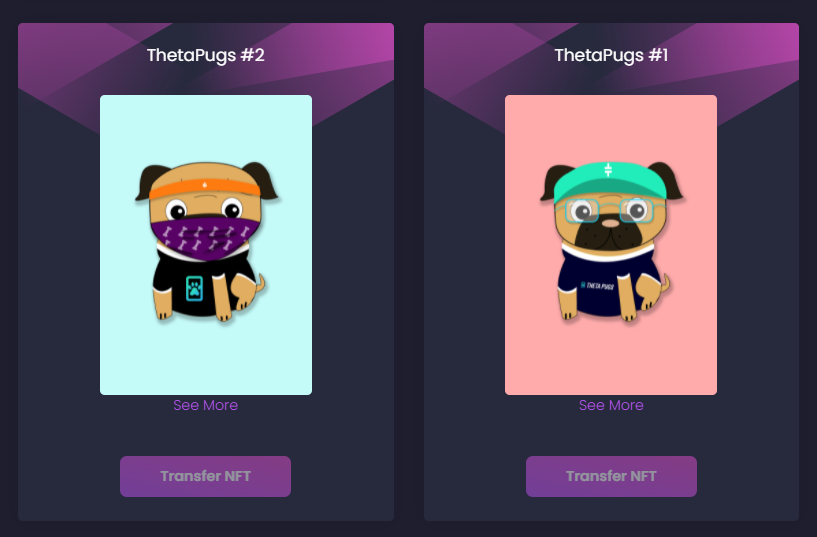
ThetaPugs is a collection of randomly generated Pugs exclusive to the Theta Blockchain.
How to Get a ThetaPug
We have put together this guide to walk people through the process of purchasing a ThetaPug. If you are still struggling with the steps we can arrange to transfer direct, just reach out via email on our contact page or twitter or discord. This process starts at the complete beginning for those that are not yet familiar with crypto.
Step 1: Getting Tfuel
The first step of the purchasing process is to get some Tfuel. This is the gas token of the Theta Network.
You can purchase Tfuel on a crypto exchange, make sure it is listed before signing up as some exchanges list different crypto.
For this example we will use crypto.com as we are based in the UK.
You will need to register for an account and follow their security procedures.
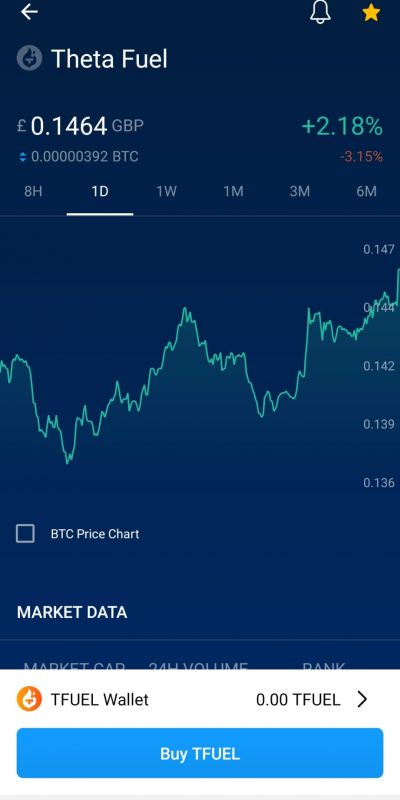
Once connected you will need to search for Tfuel and click buy. Remember to take into account gas fees and transfer costs. To mint through OpenTheta it’s roughly 1 tfuel, however transferring Tfuel to your Theta Wallet will also require gas.
We choose Tfuel as it has really low gas costs.
Step 2: Setup a Theta Wallet
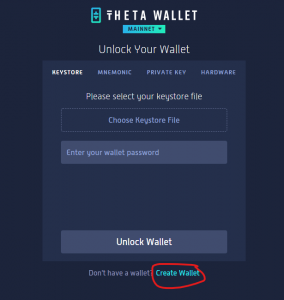
The next step is to create a Theta Wallet. This is done by going to https://wallet.thetatoken.org/ and creating a new wallet.
Make sure you save your keystore file in a safe place and make a note of your secret phrases.
Step 3: Transfer Tfuel to Wallet
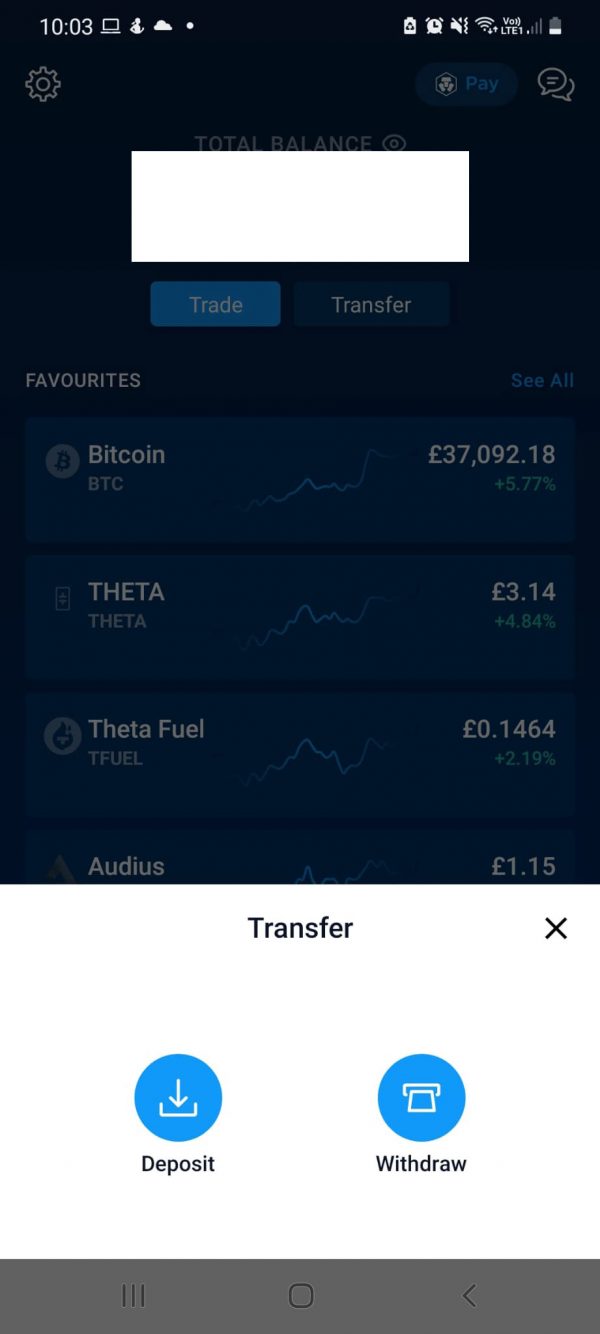
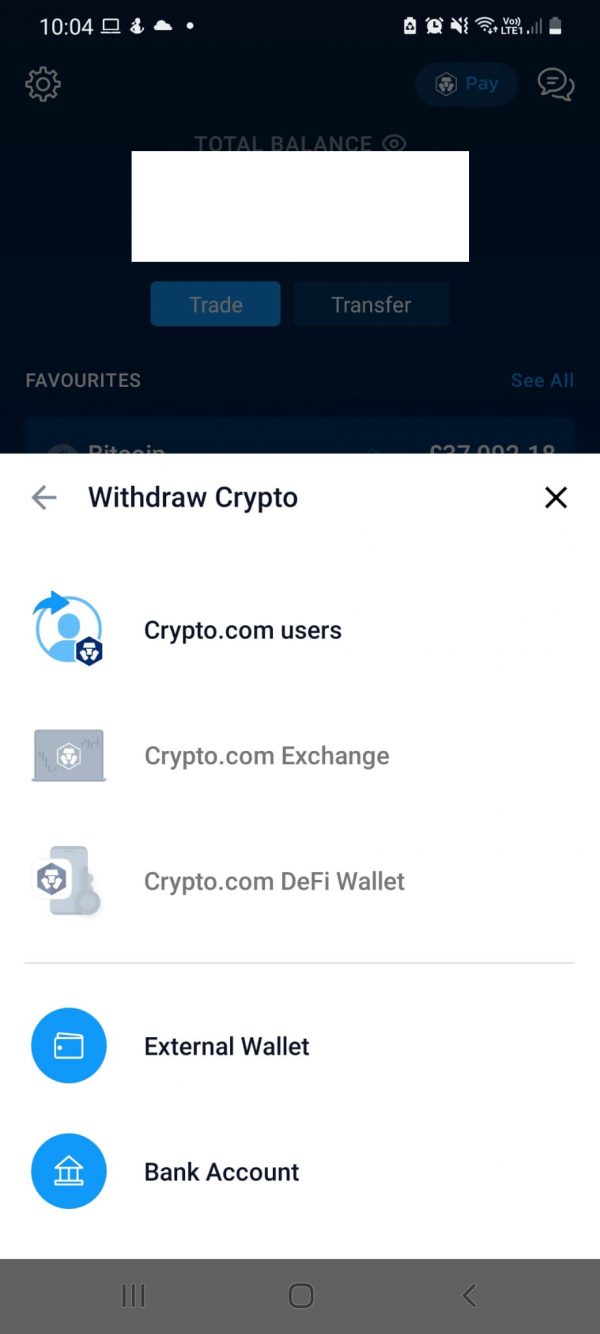
For Crypto.com users you will need to select transfer under your total balance. This should show two options at the bottom deposit and withdraw. Choose withdraw.
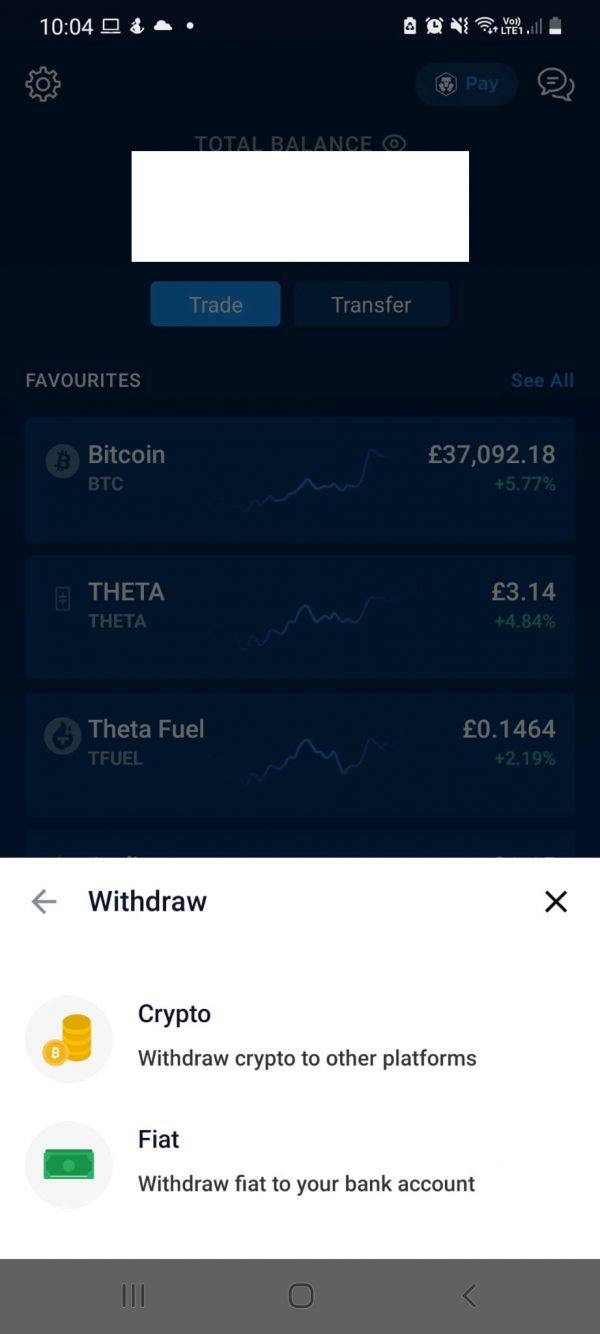
Next step choose: Crypto (withdraw crypto to other platforms)
On the third step select external wallet.
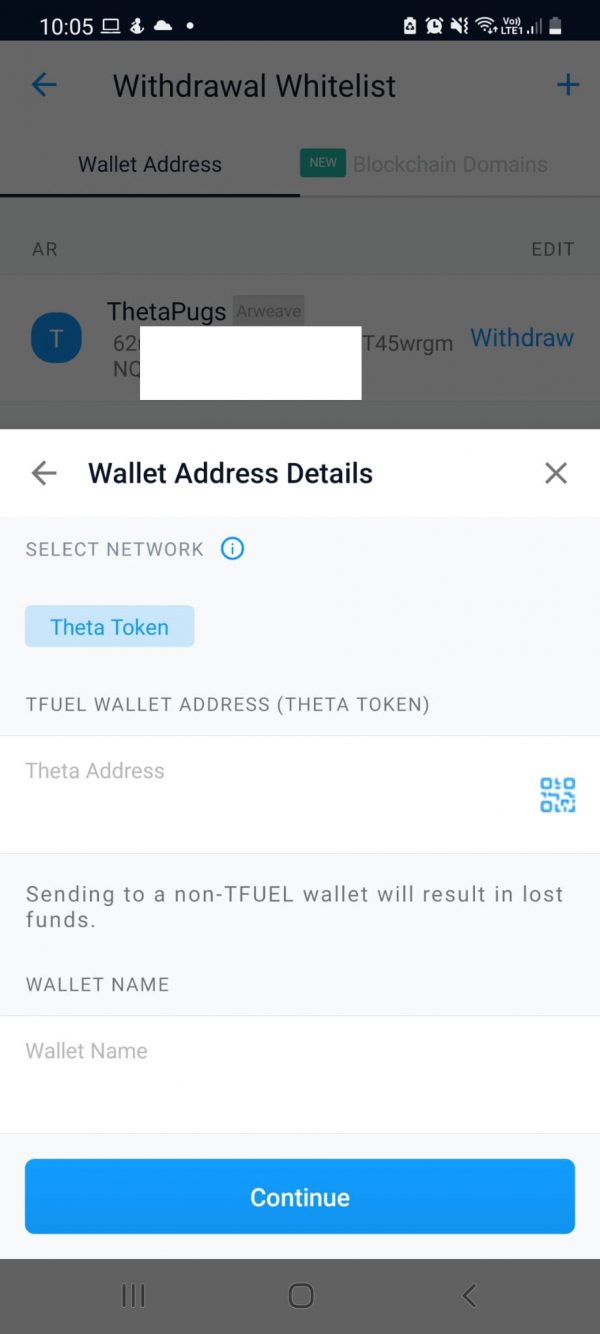
You will then need to set up the wallet. Click the search icon and search Tfuel. You should then see a screen requesting your wallet address. This can be found in the top right corner of your theta wallet which you set up in the last step. You can copy it and enter it here. (Tip: As crypto.com is mobile based, if you set up your wallet on your PC, you can email it yourself to save typing.)
You can give your wallet a name e.g Tfuel wallet or Sams Tfuel Wallet.
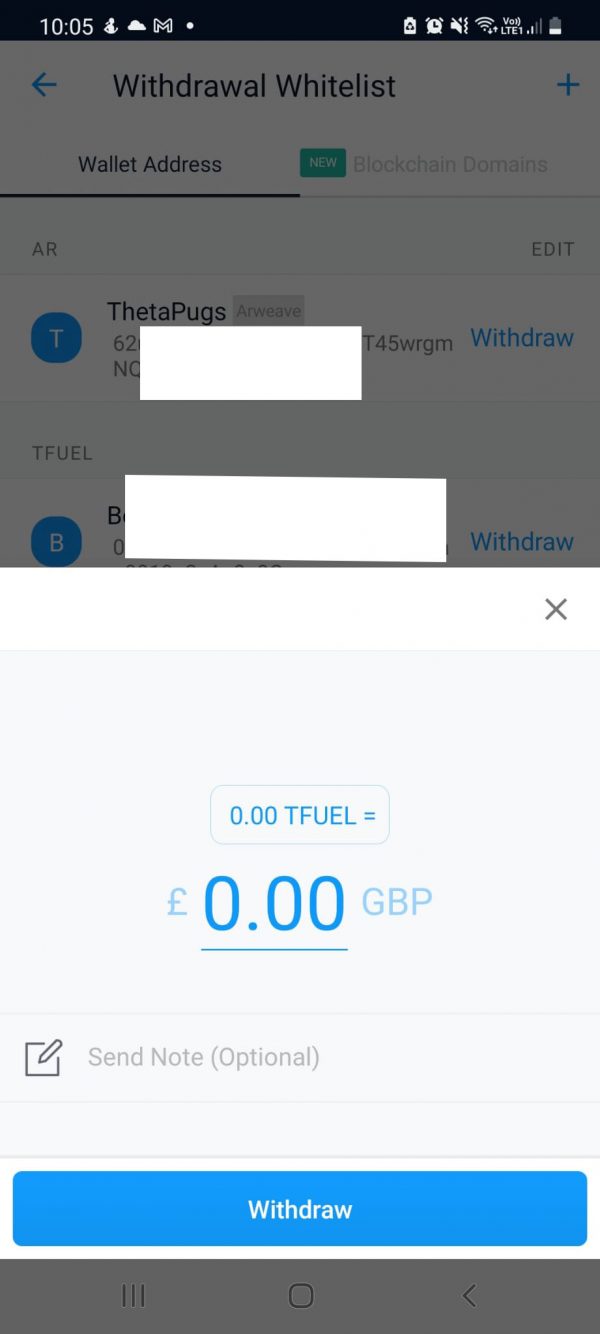
Finally select the amount of Tfuel you wish to withdraw (remember to take into account gas fee’s.) If this is your first time, only send a test amount, this will allow you to check if it’s working before withdrawing large amounts. You can click on tfuel if you wish to choose the amount in the token.
You will then need to wait until the transfer takes place, this could take a few hours.
You should then see the amount in your Theta Wallet.
Previous
Next
Step 4: Create a MetaMask Wallet
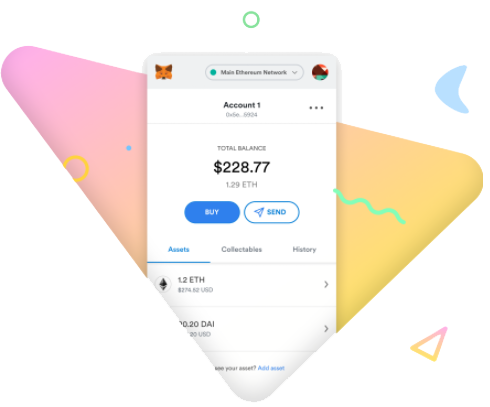
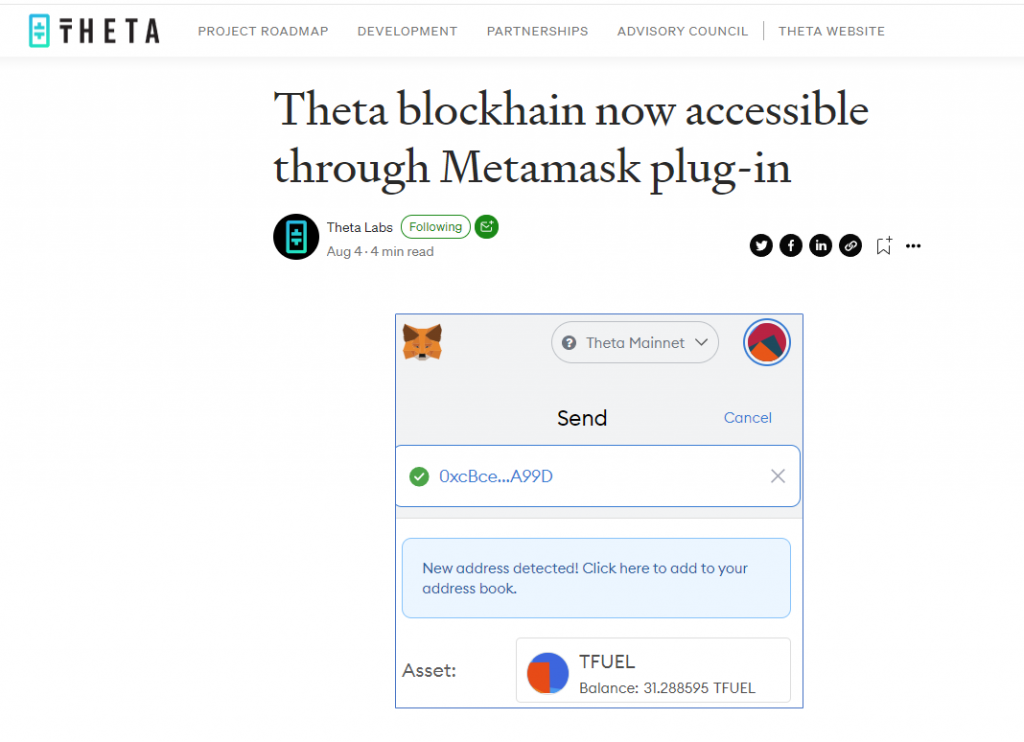
The next step is to set up a MetaMask Wallet, you can do this by visiting https://metamask.io/ and downloading the software and setting up the chrome extension.
Step 5: Connect your Theta Network and your Wallet
Once you’ve set up your MetaMask Wallet, you will need to configure it with the Theta Network. To do this follow the guide from Theta here: Setting up Theta Network on MetaMask.
Step 6: Mint from OpenTheta
Visithttps://opentheta.io/and click connect in the top right corner. Make sure you have the MetaMask Chrome extension installed.
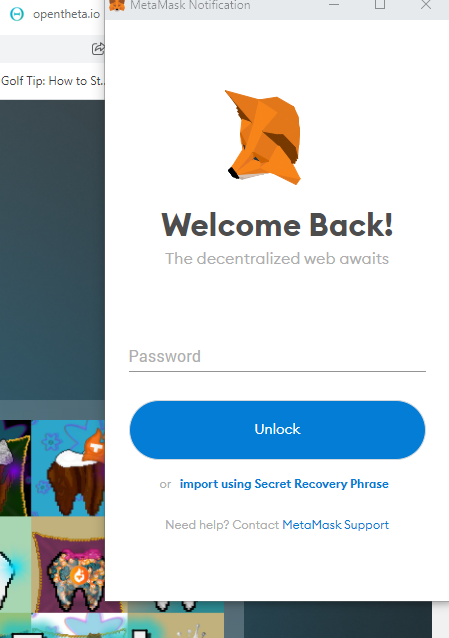
It will require you to login, if successful it should show your balance and part of your wallet address. If it doesn’t connect, check that you have the right network selected in MetaMask.
Click explore and locate ThetaPugs, there should be a Mint option. If not search ThetaPugs and tick the box under creators. If you don’t tick the box you will only see marketplace ThetaPugs rather than the mint.
Click Mint, you should be able to sign the contract and purchase at Thetapug.
Visithttps://thetaboard.io/wallet/nftand enter your Theta Wallet Address (found in the top corner of your Theta Wallet created in Step 2).
It should now display your ThetaPugs.
Still having issues?
If you are still having issues and would like to own a ThetaPug, please get in touch. We can manually transfer to your Theta Wallet (set up in step 2). Contact us at thetapugs@gmail.com